Camera Settings · Canon Basics
Getting to Know Your Canon
Where to find aperture, ISO and shutter speed on your camera, and how to use them.
Canon Photography Tips for Beginners
Welcome back! This week we’re tackling the basic fundamentals of shooting with a Canon camera. I use a Canon EOS R6 Mark III with a 24–105mm lens, and let’s just say I love it! The size is nice, not too big and not too small. The lens gives you the right amount of zoom without being too much or too little, and I love the touch screen!
If you’re shooting in manual mode (which I recommend), the three settings you’ll use the most are aperture, ISO and shutter speed. Here’s where to find each one.
Setting 01
Where to Find Aperture
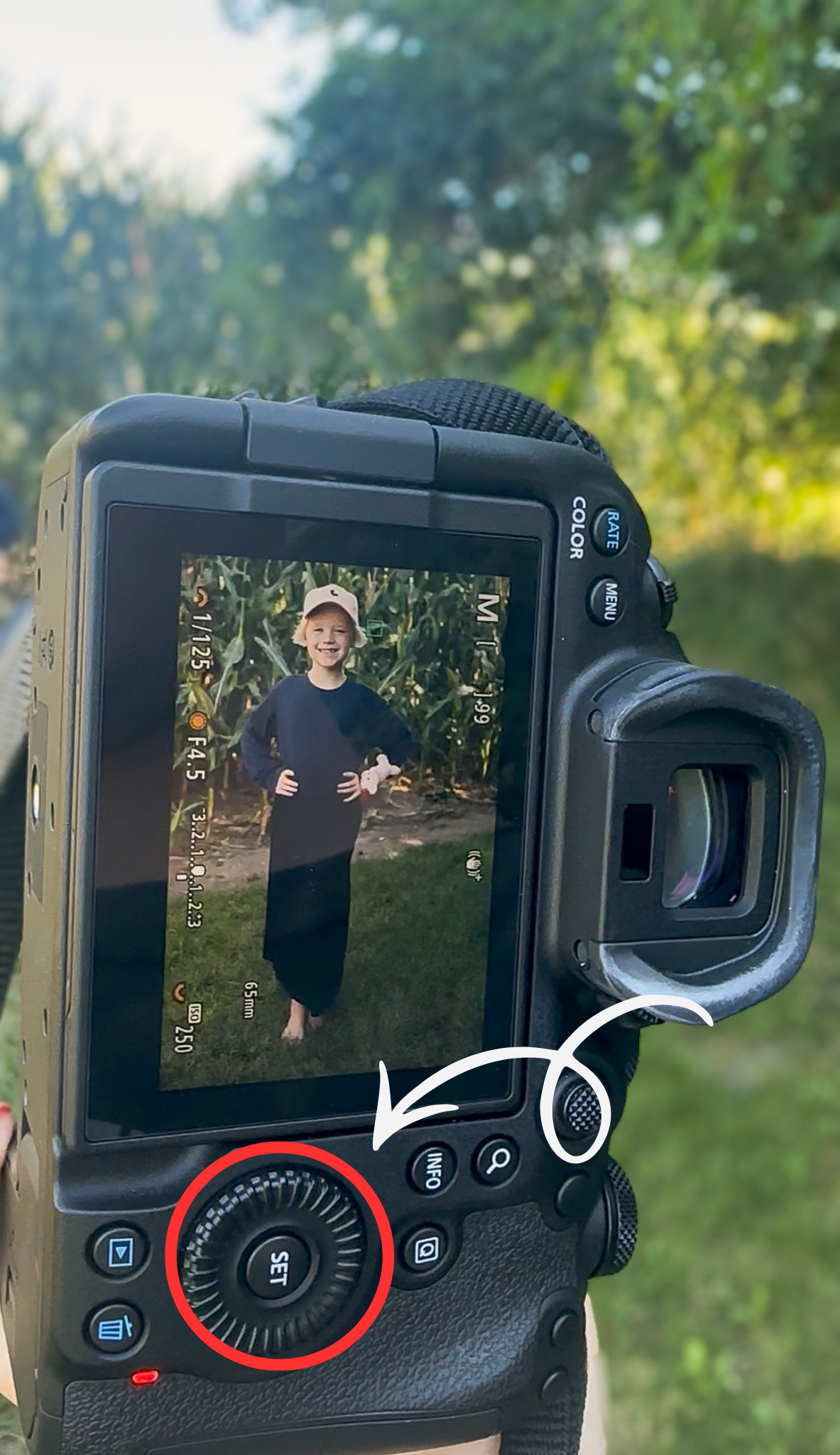
Your first setting is aperture. If you’re using a camera like mine, it’s the dial near the screen. Watch the number in the middle of the left side of the screen change as you turn the dial!
If you’re using an entry-level model, like the Rebel series, the EOS R100 or the R50, you’ll usually need to hold down the “Av +/-” button on the back while turning the top dial to change your aperture.
Setting 02
Where to Find ISO
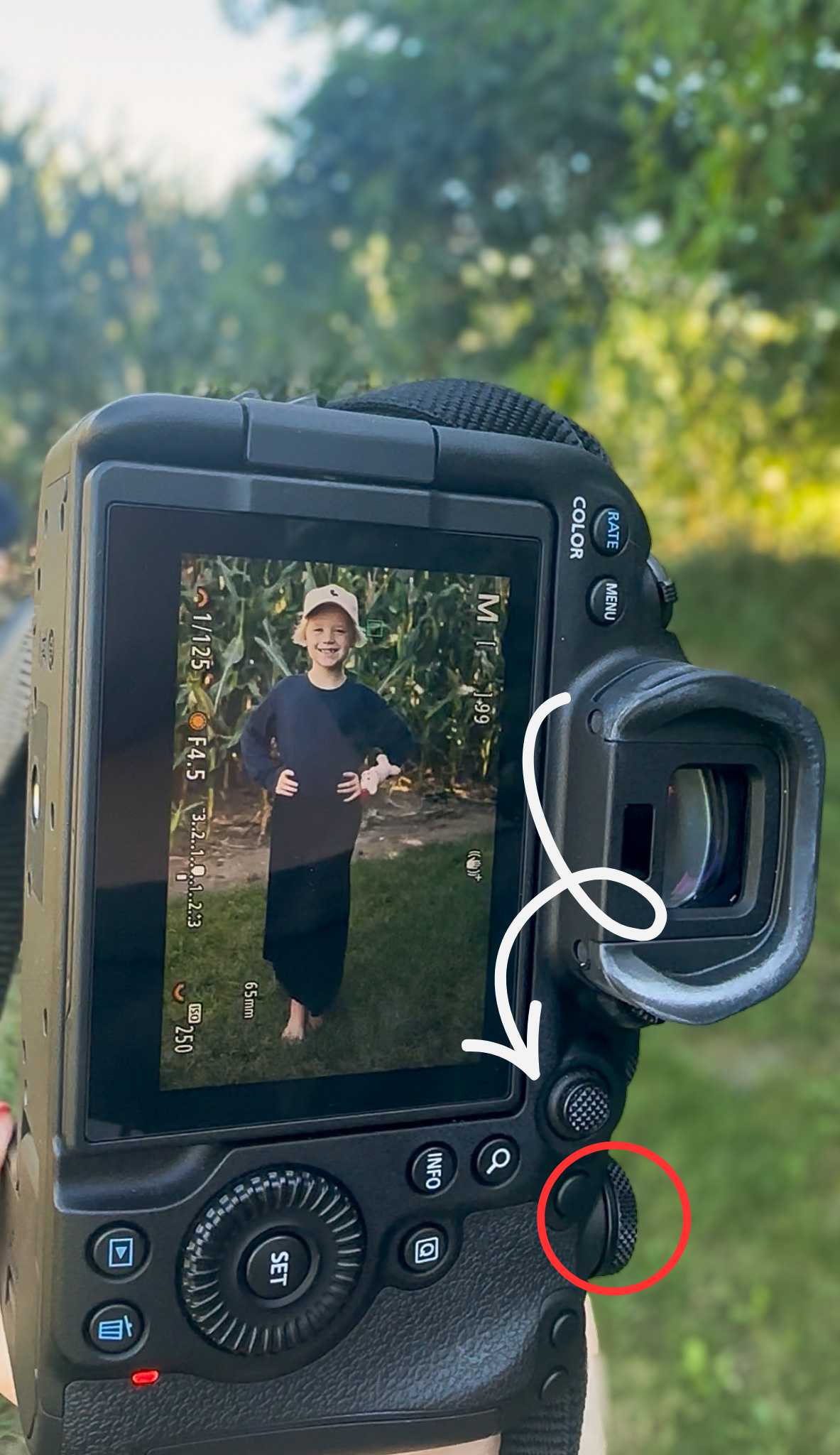
Next, let’s talk about ISO. Where’s the button for that? If you’re using the same camera as me, the circled dial controls your ISO. Watch the number at the very bottom of the left side of the screen change as you turn it!
Entry-level DSLRs, like the Rebel series, often have a dedicated ISO button on top of the camera near the shutter button. Press it while turning the main dial.
Setting 03
Where to Find Shutter Speed
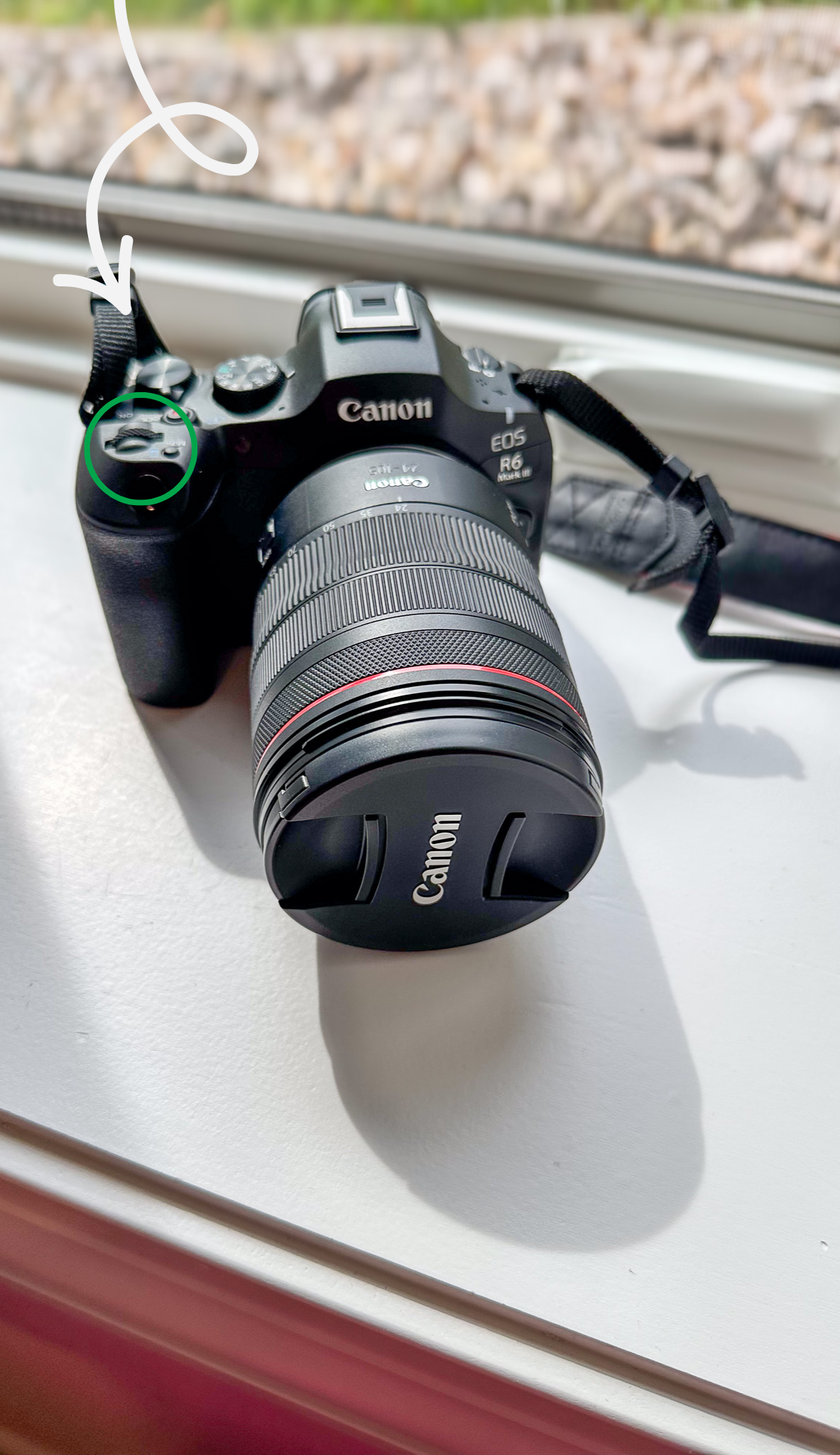
Last but not least, my favorite: shutter speed! The dial on the front of the camera controls your shutter speed. Watch the number change at the top left of the screen as you turn it. If you’re using a different make or model, it’ll be in a different spot.
Entry-level DSLRs, like the Rebel series, usually have a single main dial just behind the shutter button. What it changes depends on which shooting mode you’re in.
Bonus
How to Zoom Your Lens
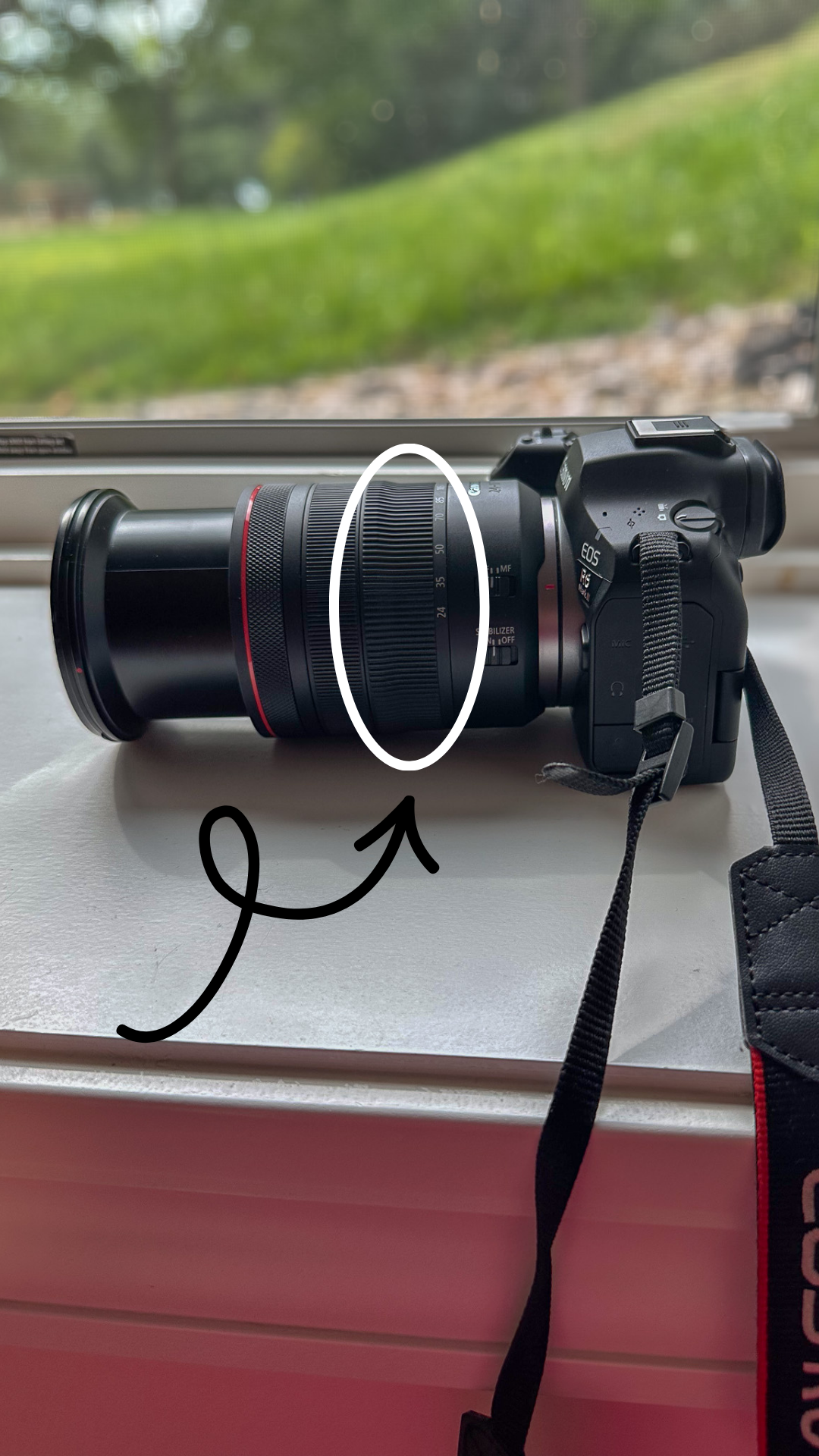
Wondering how to zoom in and out so you can capture that breathtaking picture of a waterfall? Here’s how: turn the zoom ring on your lens counterclockwise and your image gets bigger on the screen. Turn it clockwise and your image gets smaller.
Reading your screen
How to Read Your Camera Screen
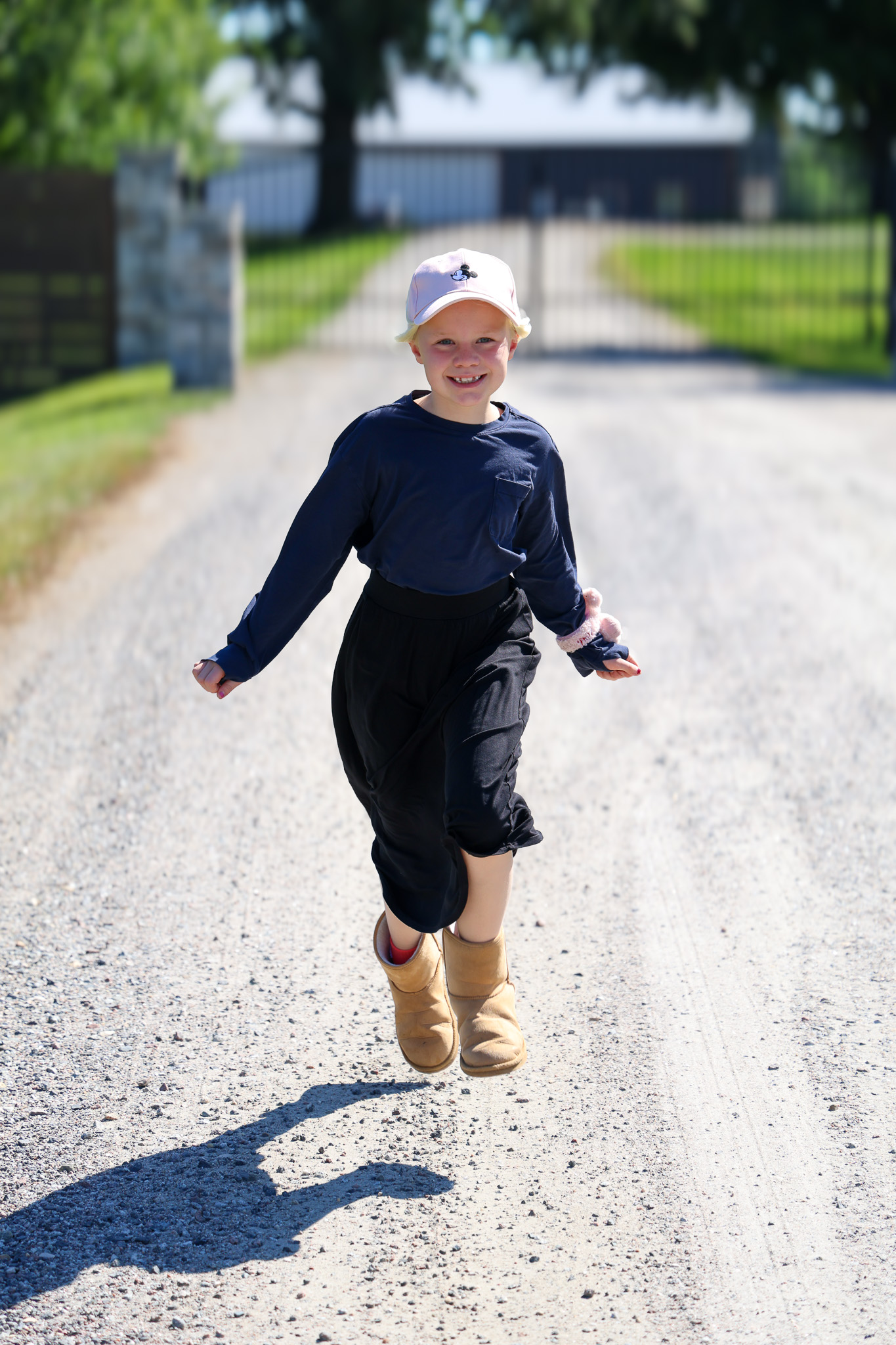
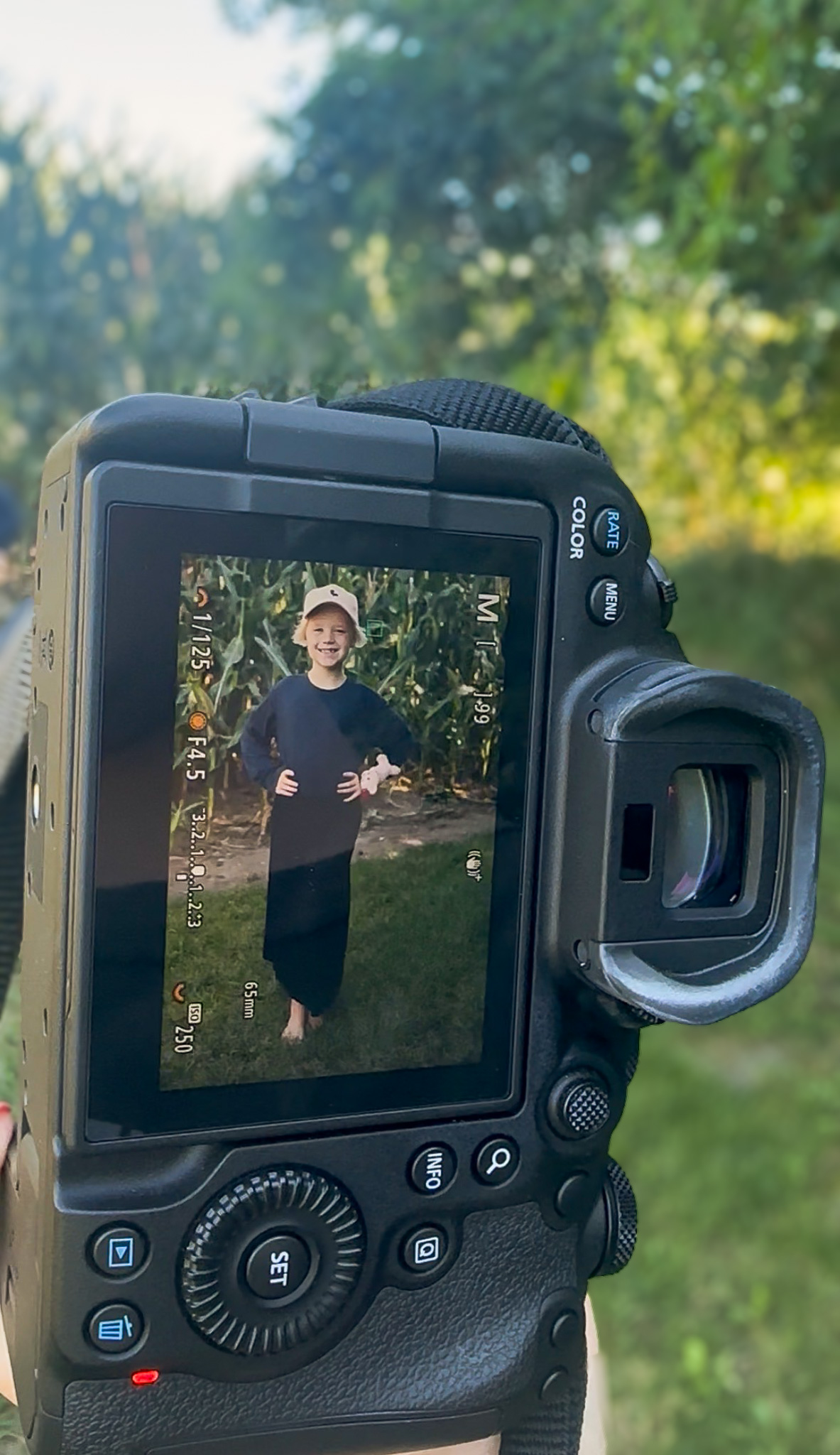
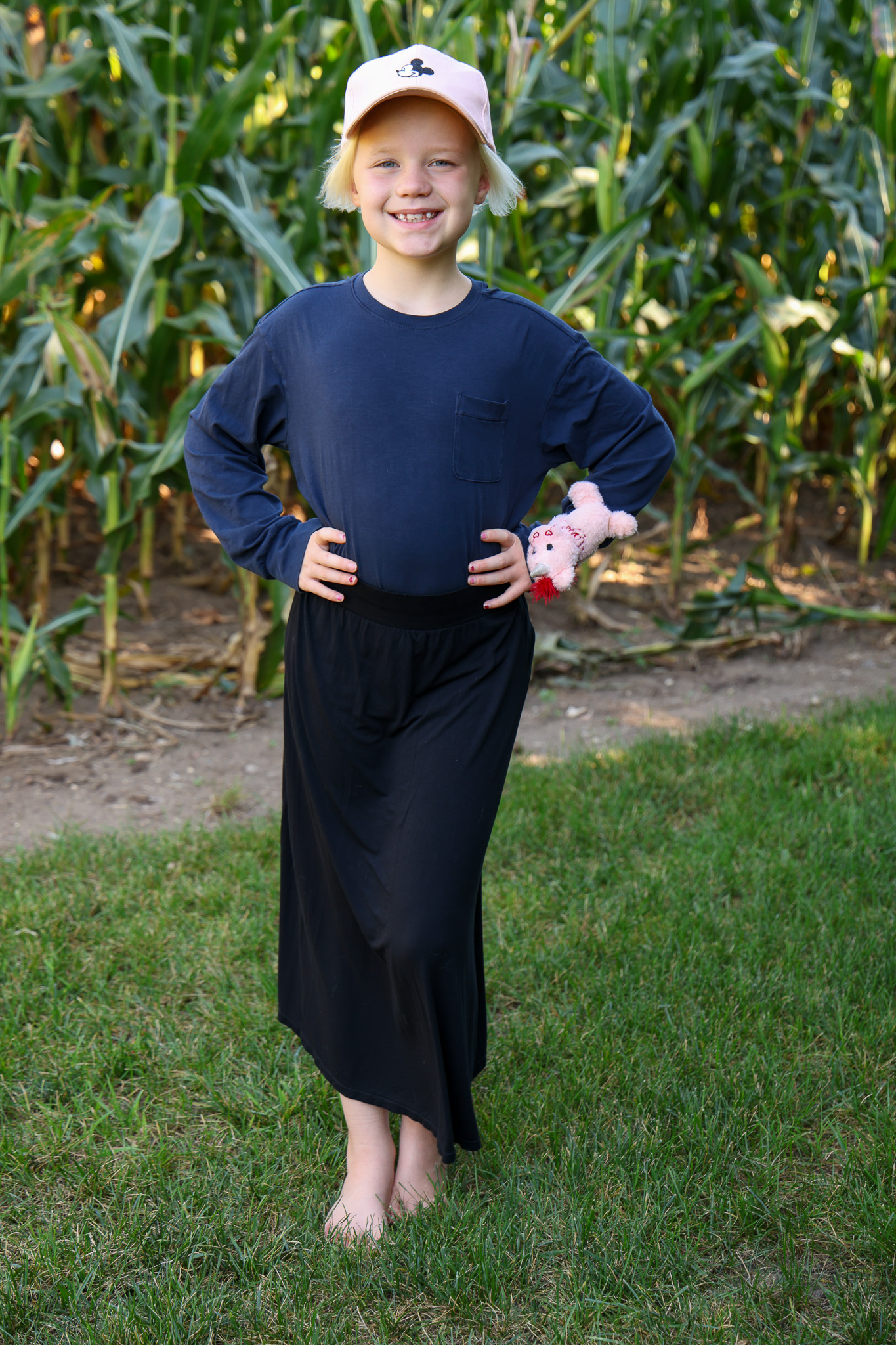
Here’s a picture of my camera screen with my settings, and then the photo I took. Shutter speed is at the top left of the screen, aperture is below it, and ISO is at the very bottom.
The higher your f-number and the faster your shutter speed, the darker your image will be. The higher your ISO, the brighter your image will be. Read How to Use Your Camera to learn more!
Behind the shot
My Camera Settings
1/125
Shutter speed
f/4.5
Aperture
250
ISO
65mm
Focal length
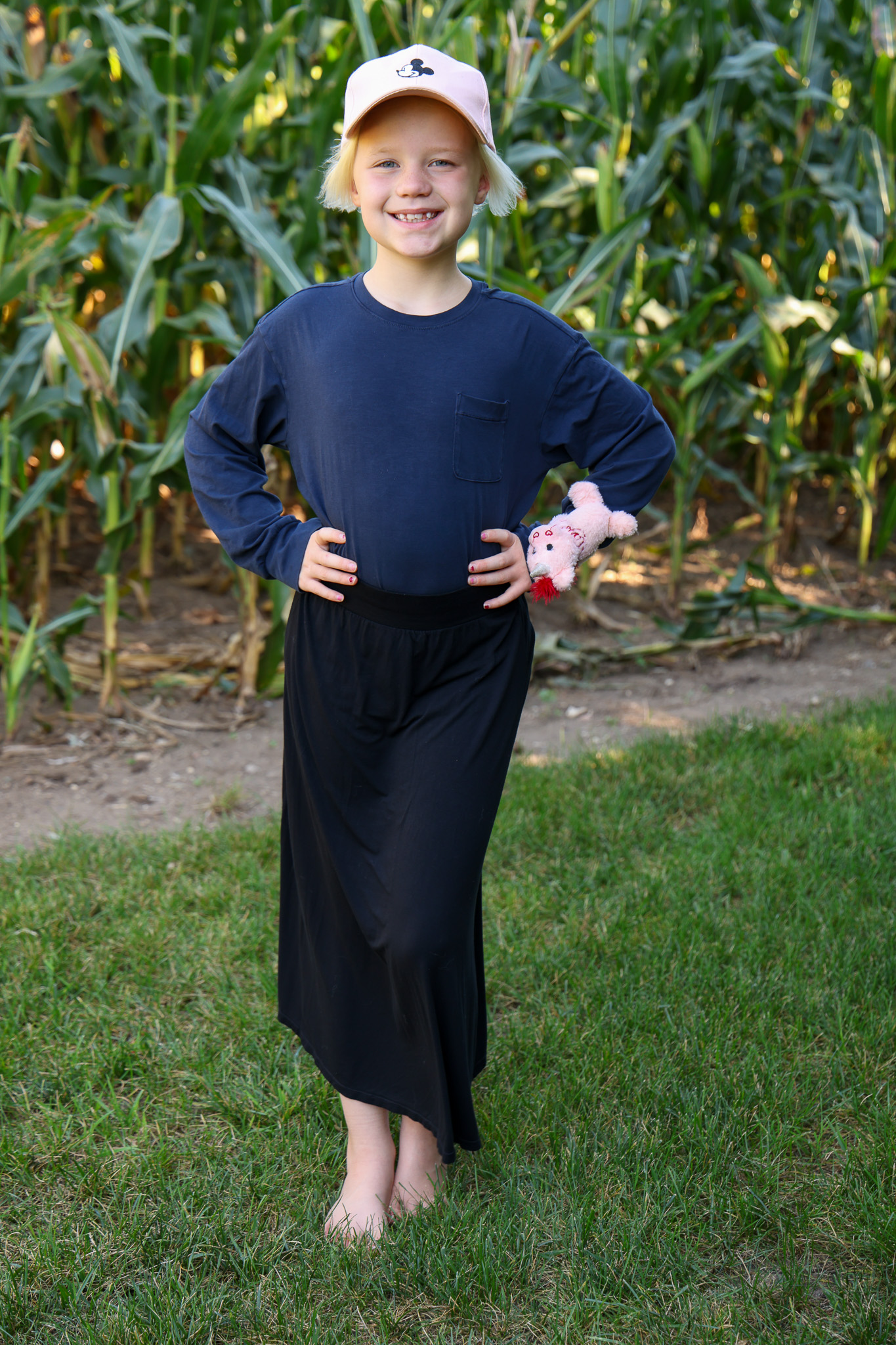
These are the exact settings for the photo in front of the cornfield, taken on a Canon EOS R6 Mark III.
Tip
See What Your Lens Sees
Do you want to see what your lens is seeing on your camera screen? If you’re working with an older camera, there should be a round black button to the right of your screen that turns on this live view.
Why use it? Because you can see how changing your settings affects the lighting and quality of your photo in real time.
Check out this tutorial on Pinterest to see how I adjust all three settings, and learn a trick at the end!
Common questions
Canon Camera Questions Beginners Ask
What camera do you use?
I use a Canon EOS R6 Mark III with a 24–105mm lens.
How do I change the aperture on a Canon Rebel?
On many entry-level Canon cameras, like the Rebel series, you hold down the “Av +/-” button on the back while turning the top dial.
Where is the ISO button on a Canon camera?
It depends on the model. On my camera, ISO is controlled by a dial. Many entry-level Canon DSLRs have an ISO button on top near the shutter button.
“Don’t be afraid to think outside the box!”
Keep learning
Learn More About Your Settings
Now that you know where everything is, learn how to use each setting.